How to manually set up a VPN on Android
VPN support is baked into Android, so you can easily set it up via the Settings menu of the phone without needing to download an app.
1.Open the Settings menu of the phone. Keep in mind that the instructions below may vary depending on what device you have.

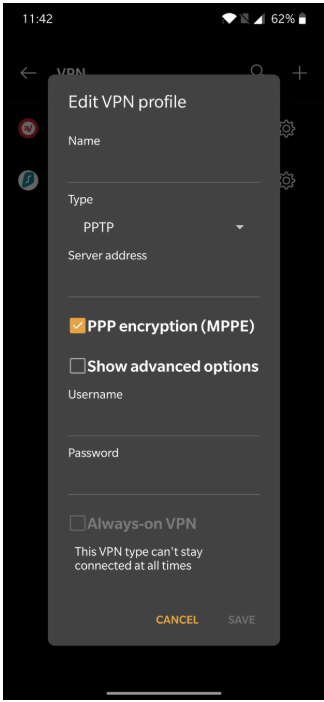
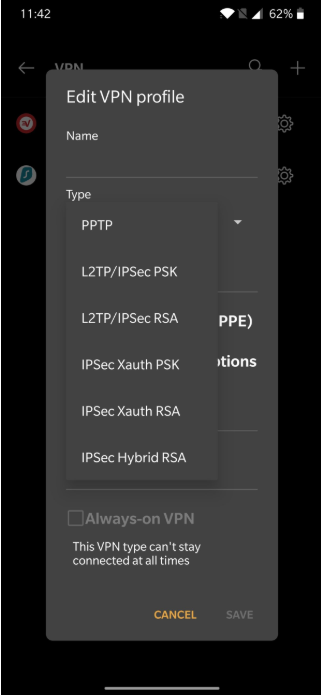
2. Tap on Wi-Fi & Internet or Wireless & networks. Basically, you need to go to the network settings page.
3. Tap on VPN. On some devices, you may need to expand the options by first tapping on More.
4. Tap on the plus sign at the top right corner. If you don’t see one, you will need to open the advanced options menu (usually by tapping on the three vertical dots icon)
5. Then click here to open VPN book.
Click here to move into VPN book page
6. Click on PPTP option provided there copy the particular country's VPN adress (of your choice), username and password and paste it to your phone's VPN setting.
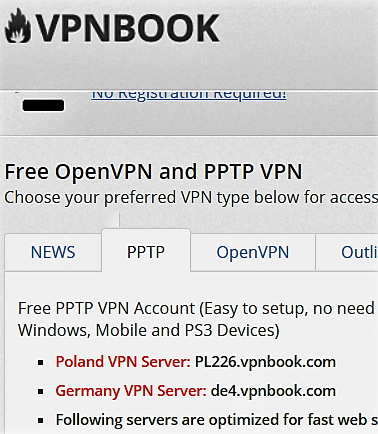
7. Click on the save option.
8. And its done!!! your VPN will be saved and click on that saved VPN adress whenever you have to connect yo that particular VPN network
note: you may have to enter the username and password which you pasted from VPN book
Create a VPN profile and connect to it on windows 10
1. On your Windows 10 desktop, right-click the Start button and select Settings from the menu that appears.
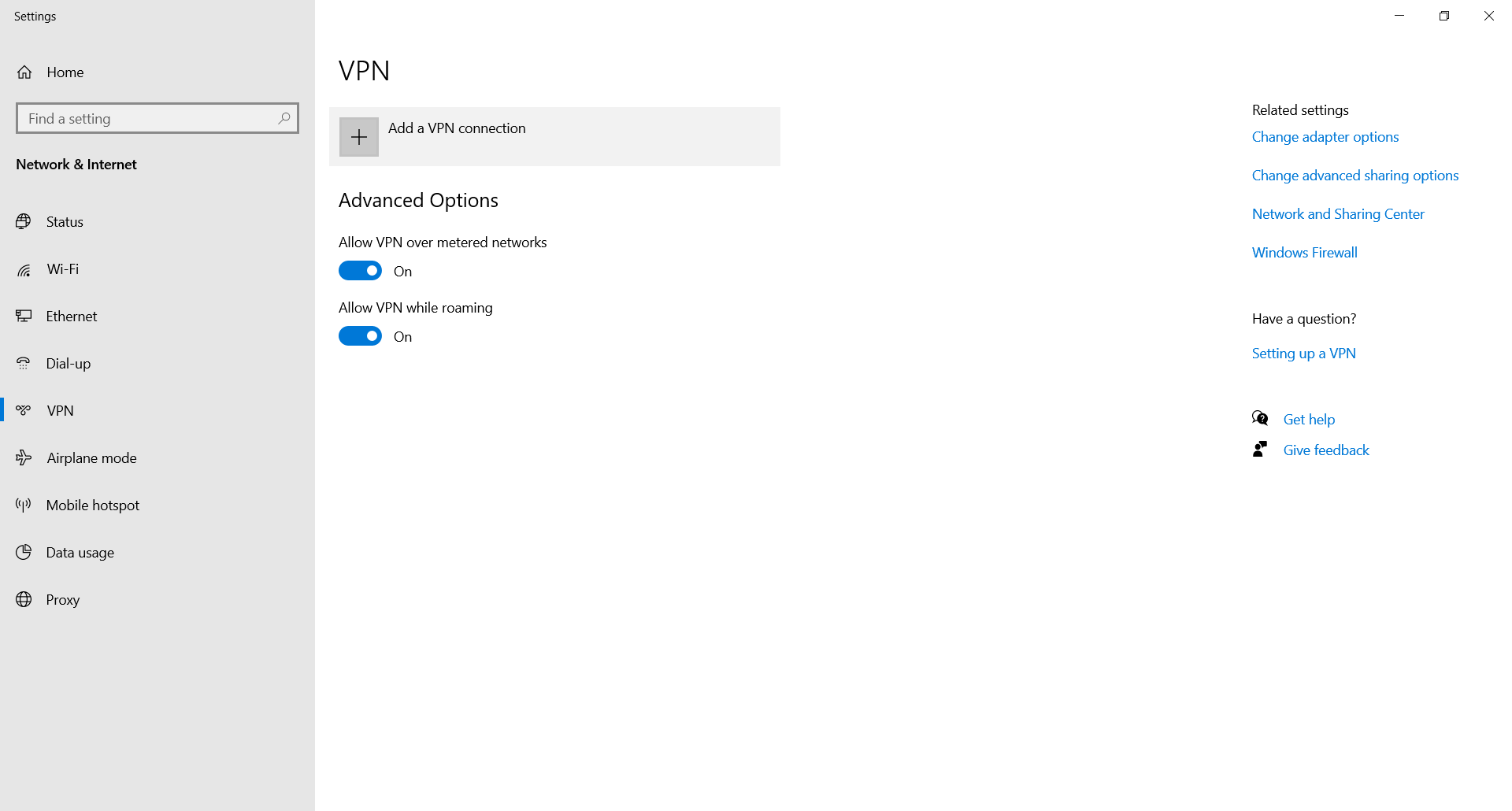
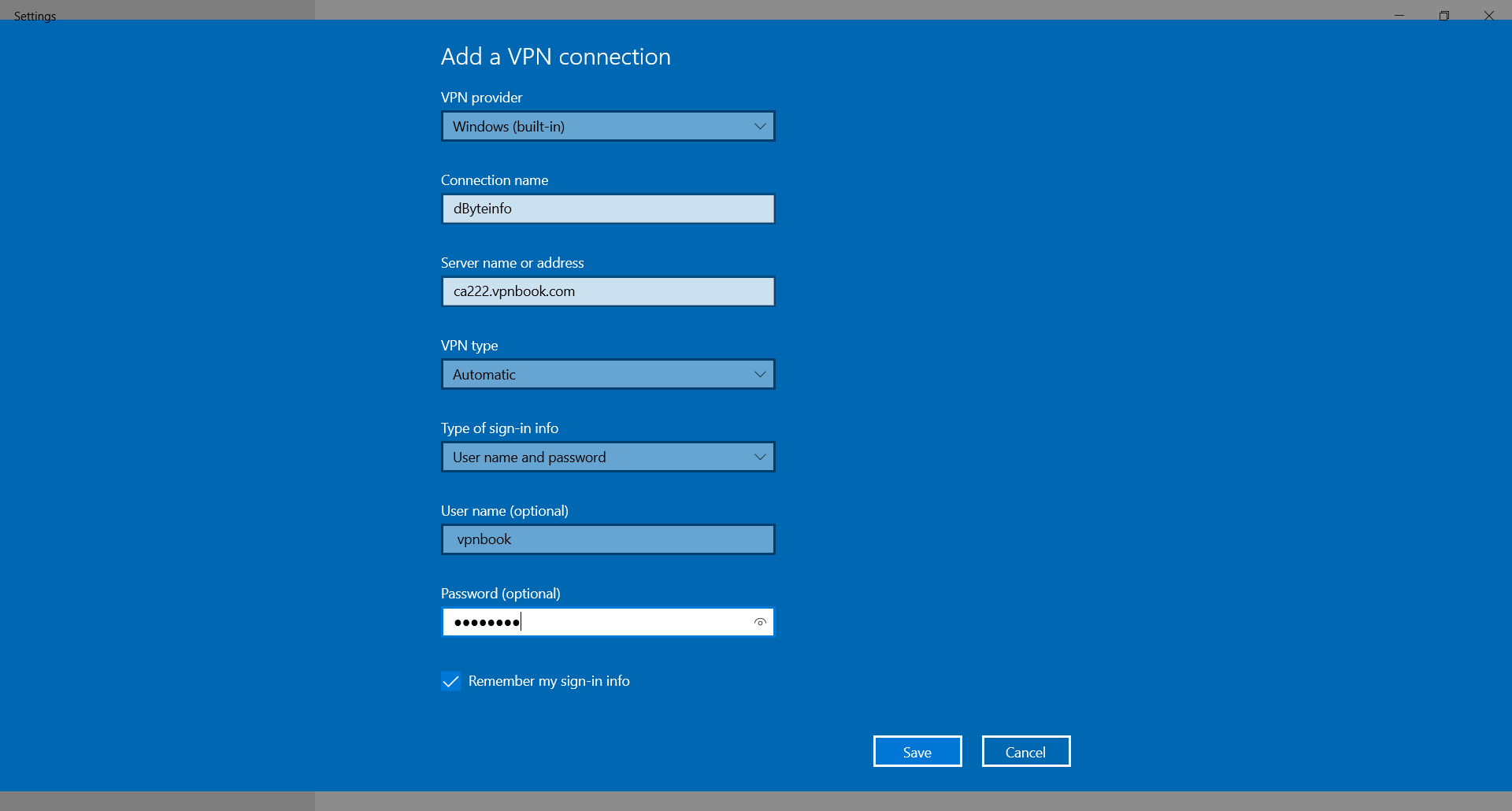
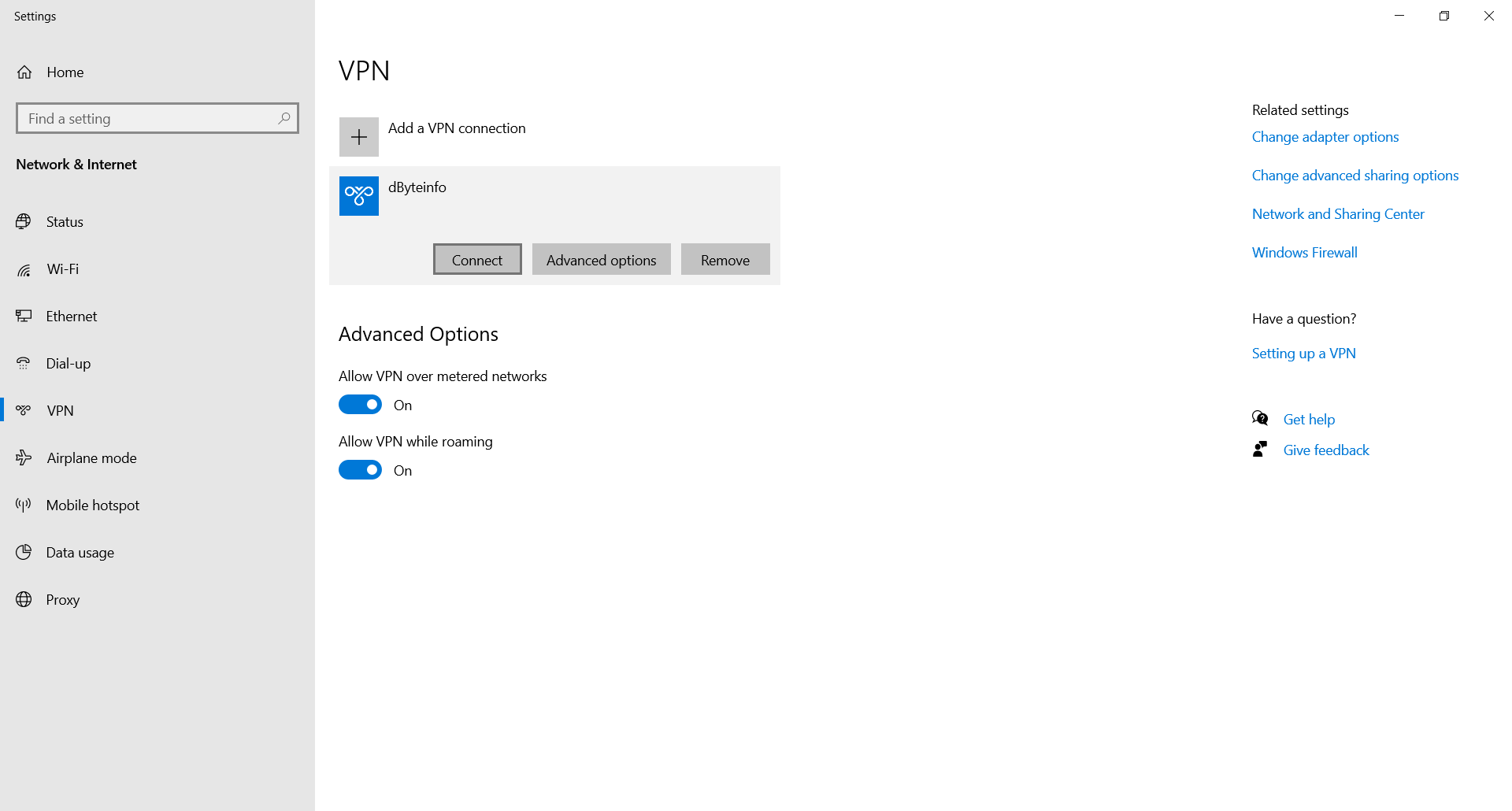
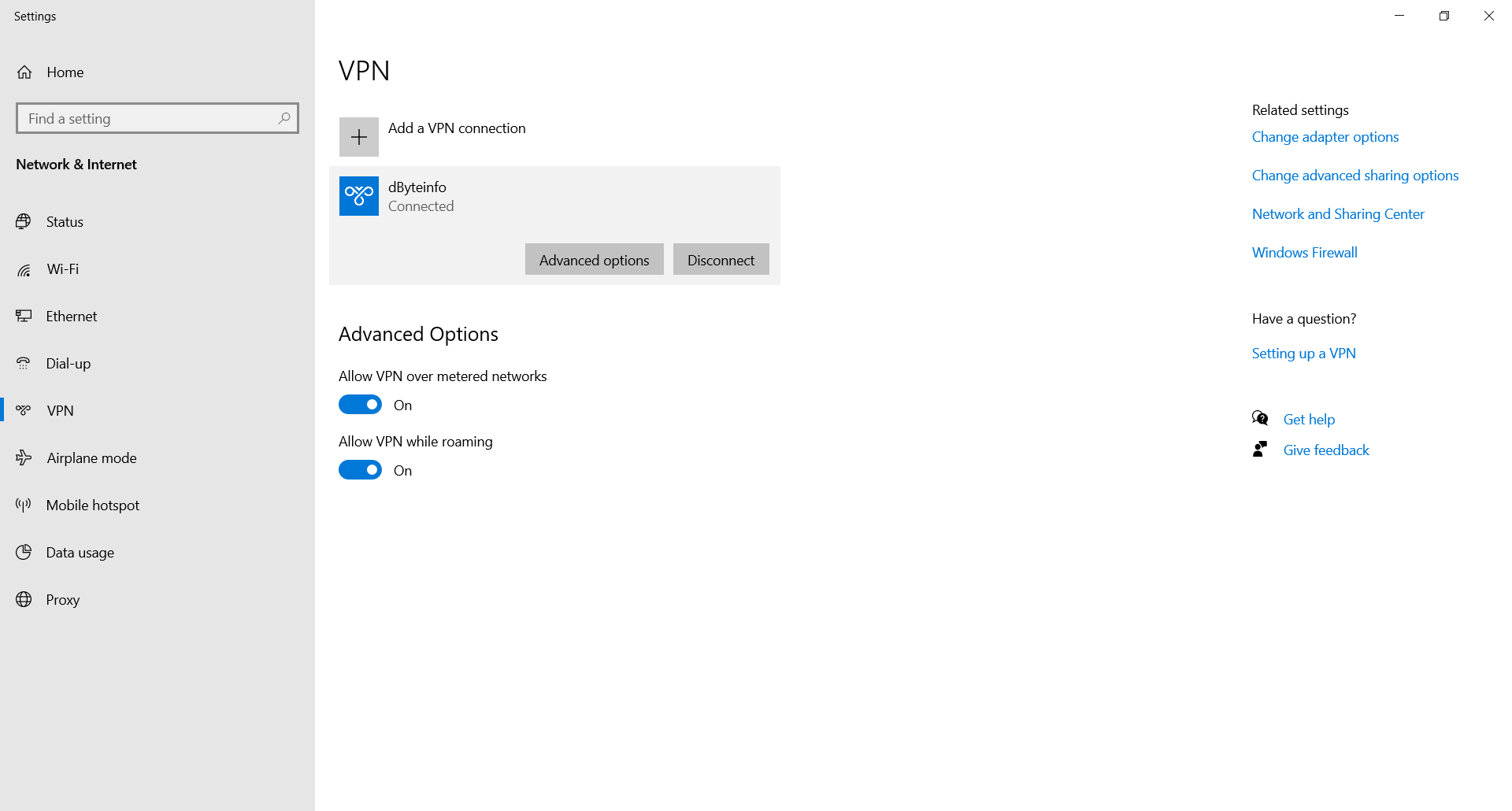
2. In the new window that pops up, click Network & Internet then select VPN from the list of connection options on the right side of the screen.
3. Click Add a VPN connection.
4. This will take you to a configuration screen. Under VPN provider, click the dropdown menu and select the option that says Windows (built-in).
5. In the Connection name field, type out the name you'd like to give this particular connection. Try to create one that you'll easily recognize as a VPN connection. If, for example, you're using ExpressVPN and want this connection to be the one you use to connect to a New York server, name the connection something like "ExpressVPN, New York server."
6. Then click here to open VPN book.
Click here to move into VPN book page
7. Click on PPTP option provided there copy the particular country's VPN adress (of your choice), username and password and paste it to your Windows's VPN setting.